A PRACTICAL EXAMPLE
How to use character reference images in AI roleplay
You want your character to look familiar when the scene changes. A useful reference shows who the character is; your chat and scene instructions explain what happens next. This guide shows how to give those inputs different jobs in Lutovia.
By Lutovia · Published
The short answer
Choose an image model that supports person references. Assign a clear picture to Person reference, and leave pose and environment to the chat when you want a new scene. Describe the current action, clothing and setting explicitly. References can improve consistency, but they cannot guarantee an exact face or body match.
- Choose a model with reference support.
- Select an image under Person reference.
- Use chat context for the new pose and location.
- Clarify the current scene and save your settings.
- Request an image, then compare the result with your intended scene.
One character reference, a different moment
Mara is a fictional 26-year-old character used in Lutovia's public demo. These previously generated images show the distinction: the seated portrait provides an appearance reference; the second image depicts a sofa selfie in a different position.
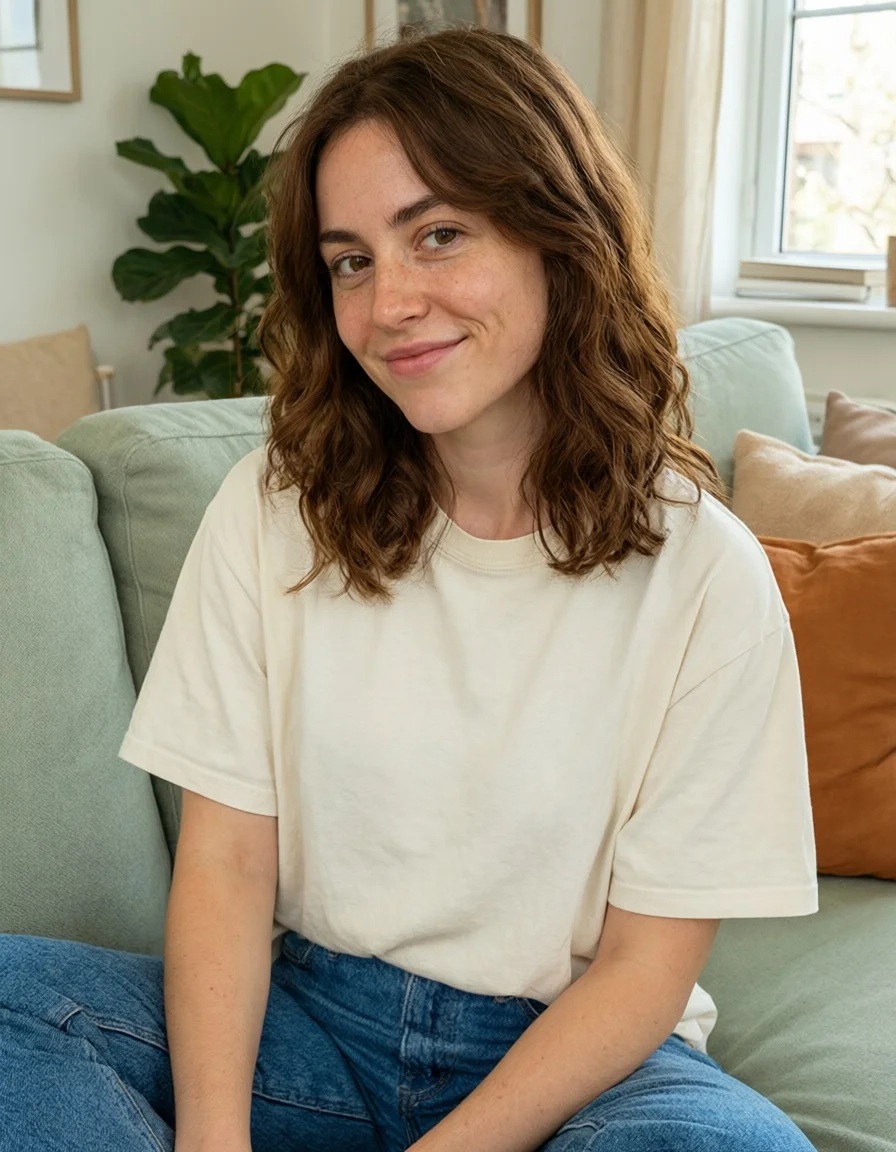 AI generated
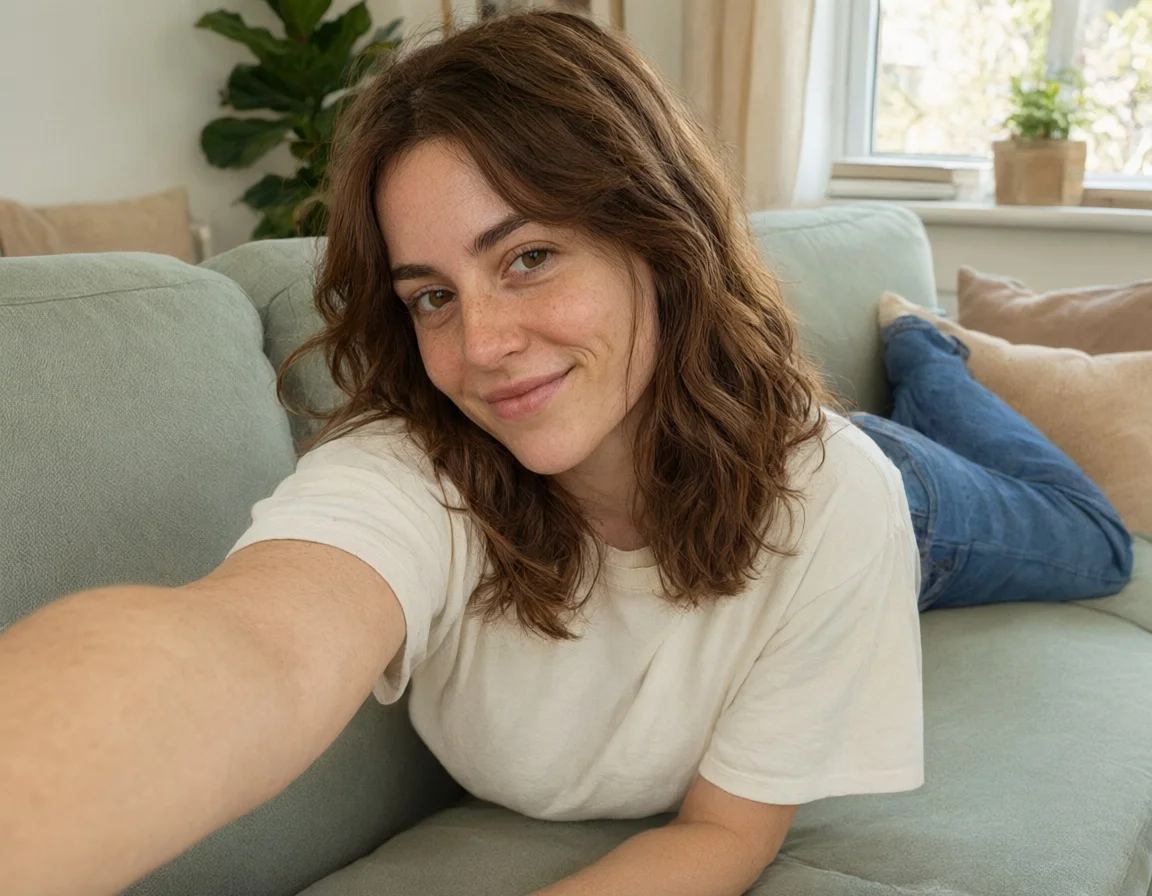 AI generated
Public Lutovia demo images featuring a fictional adult character.
This pair illustrates a use case, not a promise that every generation will match. Compare the face, hair and current action separately when reviewing your own result.
1. Give appearance, pose and environment different jobs
A picture contains several kinds of information at once: a face, a body, clothing, a pose and a place. A person reference is intended to guide appearance, but a model can also copy unwanted details from the picture. Tell it which parts should come from the new scene.
In Lutovia, the selected model determines which reference roles and how many image slots are available. Person, pose and environment references share that limit. Choosing a new model can therefore change which references fit; check the selected thumbnails after switching.
| Input | What it should guide | What to specify separately |
|---|---|---|
| Person reference | The character's face and visible appearance | Current action, outfit and location |
| Pose reference | Body position and arrangement | Who the character is and what they wear |
| Environment reference | The place and its visual features | The character's appearance and action |
| Chat and scene instructions | What is happening now | Any important detail the conversation leaves unclear |
2. Choose a reference the model can read clearly
Start with one well-lit image of one fictional adult character. The face should be large enough to see, with no heavy blur, strong filter or object hiding the main features. A complicated group photo makes it harder to indicate whose appearance matters.
If both face and body shape matter, choose framing that actually shows the relevant features. A tight headshot gives little information about the rest of the body. More images are not automatically better: a small, consistent set is easier to keep unambiguous than pictures with conflicting appearances.
- Prefer clear, natural lighting and a visible face.
- Avoid conflicting ages, hairstyles or body proportions across references.
- Use one clearly identifiable person per reference when possible.
- Use images you own or have permission to use. Avoid sensitive personal information.
3. Set up the reference in Lutovia
Open Image settings in your chat. Choose the image model first, because reference support varies by model. Use its description and available controls to check whether person references are supported; a text-only image model will not use a person reference.
Choose the image model
Select a model with person-reference support. Check its image limit before adding more pictures.
Select the person reference
Under Person reference, choose From uploads and select a picture, or choose Upload a new image. You can also select an available generated image with From gallery.
Leave the new scene to the chat
If only the character's appearance should come from an image, do not select a pose or environment reference. The unassigned parts are derived from the conversation.
Clarify the moment
Write the action, position, current clothing and location in the chat or the additional scene instruction. Be specific about any detail you want to change from the reference.
Save and request an image
Choose Save settings, then use the image button in the chat. Your saved settings carry into later requests. If you enabled per-request questions, answer them before submitting.
4. Describe the new scene without redefining the person
Treat identity and action as separate instructions. A stable character description might mention brown wavy hair and freckles. The scene description should instead say where the character is, what they are doing and what the camera should show.
For a pose, describe visible relationships: sitting or lying down, facing the camera or turned away, the direction of the torso, and where arms and legs go. A short pose name on its own can be ambiguous. Also state the current outfit when it differs from the reference image.
Do not assume an image request will reproduce every detail from many messages ago. If a location, outfit or position is essential, briefly restate it before requesting the image. This gives the available context a clear description of the current moment.
A scene instruction you can adapt
Use the selected person reference for Mara's appearance. She is lying on her stomach on a green sofa, propped up on her left forearm, holding the camera with her right arm extended. Her legs stretch behind her. She wears a cream T-shirt and blue jeans. Daylight comes from the window. Show a close selfie view, with her face clearly visible.
5. Fix the mismatch that matters most
Before generating again, identify the main problem. If the face is wrong, changing the background description is unlikely to solve it. If the pose is wrong, adding another face reference may only make the request more complicated. Change one source of uncertainty at a time.
| Problem | Check first | A useful next change |
|---|---|---|
| The face looks different | Is the intended person reference still selected? Does the model support it? | Use a clearer face reference and simplify the scene for the next attempt. |
| The reference pose is copied | Is the same image also assigned as a pose reference? | Remove the pose reference and describe the new body position explicitly. |
| The old outfit returns | Is the current outfit clear in the recent context or added instruction? | State what the character wears now and which reference clothing should change. |
| The wrong place appears | Is an old environment reference selected? | Remove or replace it and describe the intended setting. |
| Two people are mixed together | Are the references and descriptions unambiguous? | Use separate, clear pictures and specify which character each description belongs to. |
| Hands or limbs look unnatural | Is the requested pose complicated or partly hidden? | Try a simpler, clearly described pose or a more suitable model; results can still vary. |
6. Image recognition and image references do different things
Uploading an image with recognition enabled creates a description that the chat can use in its replies. It does not automatically mean the image is selected as the visual reference for every generation. For that, check the picture under Person reference in Image settings.
Likewise, a reference for image generation is not a guarantee that the chat has correctly described every visible detail. If recognition gets a color or position wrong, correct the description in the conversation. Keep the intended appearance and the current scene clear in both places.
7. Keep references useful without unnecessary repeat requests
Saved image settings and selected references can be reused for later requests. You can change the settings for future images while an earlier image is generating; that running request keeps its original settings. If you want to choose a new picture each time, enable the per-request reference question for the relevant role.
The settings display an estimated image price, an image maximum and a total limit. Prompt preparation and image recognition can be charged separately from the image itself. If a complete cost receipt is missing, the displayed applicable maximum is used, including for failed generations. Check the current price information before submitting, and treat another generation as a new request.
Generated images and videos are removed after 14 days. Download anything you want to keep. For a lasting reference, use an uploaded image rather than relying on an expiring gallery result. Uploaded references remain until you remove them or delete the associated content.
FAQ
Questions about character reference images
Does a reference guarantee the same face?
No. A reference guides the model but does not lock every facial feature or body proportion. Image quality, the selected model, pose and scene complexity all affect the result.
Can the character wear a different outfit from the reference?
Yes. Describe the current outfit in the scene instruction or chat. Keep the image assigned as a person reference and make the intended clothing change explicit. A model can still copy details you did not intend.
Can I use references for several characters?
It depends on the selected model's supported roles and image limit. Lutovia currently allows up to two directly selected person references when the model has enough slots. Pose and environment references use slots from the same limit.
Why does the chat understand my upload but the generated image ignores it?
Image recognition passes a description to the chat. Image generation needs the intended visual reference selected in Image settings as well. Check both the model's reference support and the selected person thumbnail.How image recognition works in chat
Do I need to repeat every detail for every image?
Your selected settings and references can stay saved. Restate the current action and any essential changes when they could be unclear, especially in a long conversation. You do not need to rewrite the character's full biography.
Can I turn the finished image into a video?
Yes. Open an available image in the chat and choose Animate. Check the separate video settings and price before starting. Animation may change small details, so review that result too.Learn about image-to-video